Hi, Jesse!
I have done this by setting up a section for just my extended time students.
In your Settings on the Sections tab, name your course and hit the add button:
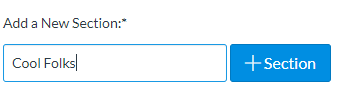
I have mine named "Cool Folks" because the kiddos can see the name of the section, so I don't want it to be "Extra Time" or anything like that.
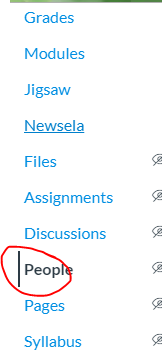
Click "People" in the left-hand toolbar.
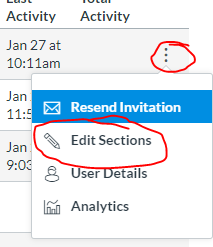
Click on the three lines to the far right of a student's name and choose "Edit Sections"
You'll type your new section name in the blank and click "Update"
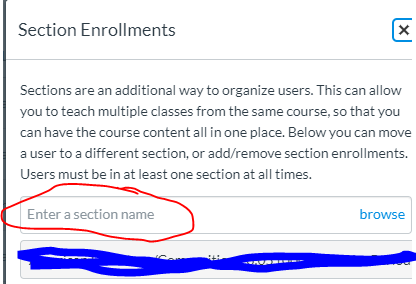
It'll keep the student in both sections -- the original and your new one!
When you create an assignment, choose your section under "Assign To"
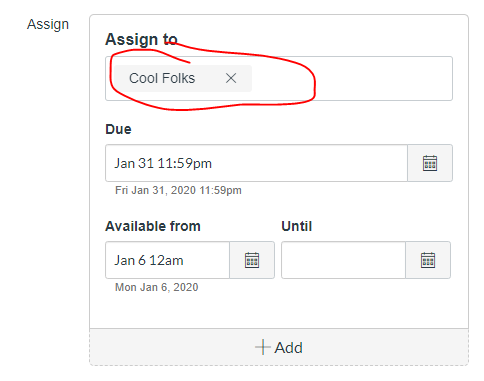
Put in your extended time information.
Click "Add"
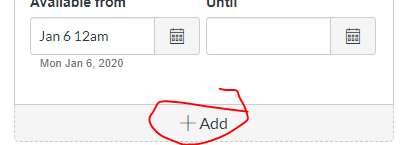
In the drop down under Assign To, choose "Everyone"
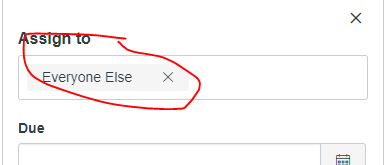
It'll automatically take out all the students in your pull-out section and assign it to "Everyone Else" for the actual due date. 
Hope this helps!
~Karen S.





This discussion post is outdated and has been archived. Please use the Community question forums and official documentation for the most current and accurate information.