Hi aklevorn,
I was just struggling with this as well. I figured out that they are looking for details from the initial SAML setup screens from the Google Admin Console. To see these from the GAC:
- Open the SAML Apps area.
- Open the Canvas SAML propertied
- Expand the "Service provider details" section.
- Click on the "Manage Certificates" button
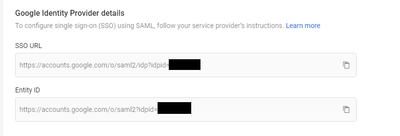
- Copy and paste the "SSO URL" and the "Entity ID" information into the Authentication areas in Canvas.

Once I did this, Google started authenticating users in Canvas.
Also, there are 2 logins for your Canvas environment.
- https://<Your Environment Name>.instructure.com/login/canvas - This is for manual logins. This works as a backdoor in the case your SSO is hosed.
- https://<Your Environment Name>.instructure.com - This is your SSO login.
I hope this helps.




This discussion post is outdated and has been archived. Please use the Community question forums and official documentation for the most current and accurate information.