Hello @AJ1981
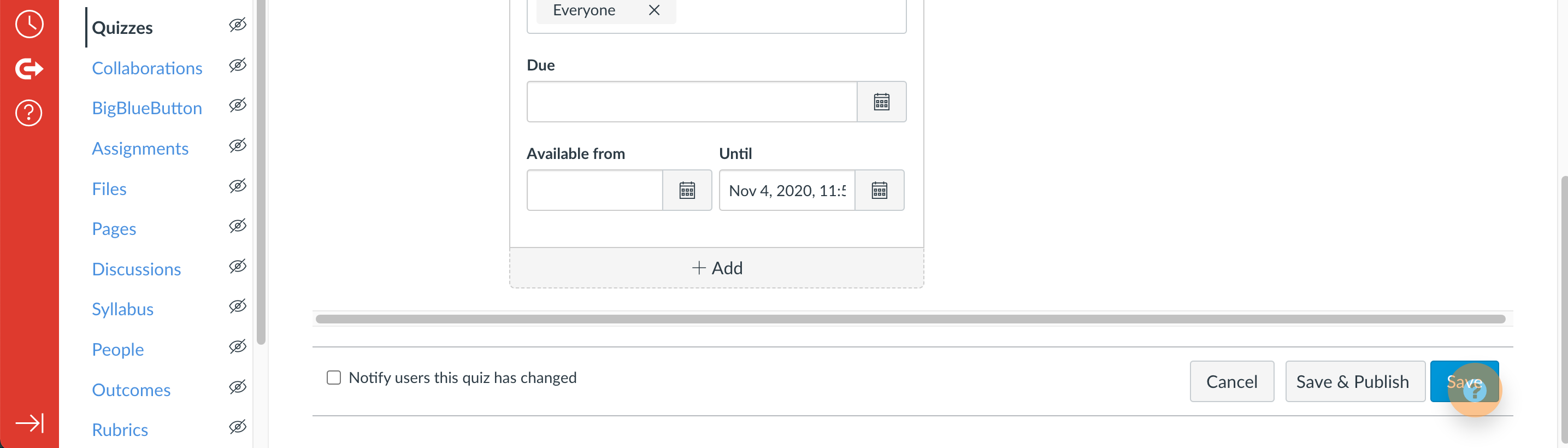
Thank you for contacting Canvas Support. We're sorry to hear you've been experiencing issues with overlapping save and help buttons. Normally, this would be a display issue with your device or browser. We recommend clearing the cache on the browser you are using:
In Chrome
On your computer, open Chrome.
At the top right, click the three dots
Click settings
On the left, choose Privacy and Security
Then, clear browsing data
At the top, choose a time range. To delete everything, select All time. I suggest at least 4 weeks
Next to "Cookies and other site data" and "Cached images and files," check the boxes.
Click Clear data.
However, it also depends on the Canvas Instance that you are using. Different schools and organizations use different templates and layouts and we may need to look at your setup. The default layout should have your support/help icon on the far left and most save buttons on the far right.
In a situation like this, it would be best to look at this specifically so we can see the course, students, and assignment directly. Please feel free to contact Canvas Support directly so we can pinpoint the source of the issue and provide a solution. Thank you!
https://community.canvaslms.com/t5/Canvas-Basics-Guide/How-do-I-contact-Canvas-Support/ta-p/389767





This discussion post is outdated and has been archived. Please use the Community question forums and official documentation for the most current and accurate information.