The Instructure Community will enter a read-only state on November 22, 2025 as we prepare to migrate to our new Community platform in early December. Read our blog post for more info about this change.
Lots and lots and lots of ways! I'll give you my top 3:
1. Screencast-o-matic is a free Google add-on. It will come right in your toolbar and you can use It to record your desktop, a PowerPoint, etc. You can even choose for it to record your beautiful face while talking and not just serve as a voiceover!

2. The CEO of Zoom is currently offering a free subscription. It's an app that allows for video conferencing, but you can also record yourself sharing your screen, a PowerPoint, etc. It's an AMAZING app!

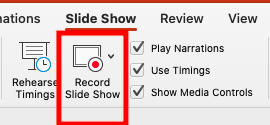
3. There is a recording feature in PowerPoint, itself. You can use this to do a voiceover of each slide and when the students go to play the PowerPoint as a slideshow, they will have a play button they will press to listen to you as you go through the slides. Select "slideshow" and then "record slide show."
Hi,
I use office 365 for making powerpoints. I made a powerpoint with audio as intructed for Office 365. The ppt is a different software than the one in Office 2016. On my computer the ppt plays fine. After uploading to Canvas, the audio does NOT work. Is there a way around this?
I do not want to use conferences in Canvas or any other synchronous app. My students have children who need the computer for school as well, so I want them to be able to view my lessons when it works for them.
With this Screen cast, Do they see me? Can they click on the embedded videos and animations I have in the power point? I really don't care about them seeing me, but it is important that they look at the embedded material as they go thru. And do my students need a google account to view it? Or does it open directly from Canvas?
Thanks for your help
K. Gasser
Thanks for the information!
I have used Canvas for my personal schooling where professors have uploaded PowerPoints with embedded audio. They didn’t play through Canvas, but downloading the PowerPoint would do the trick. Wonder if it’s something like that here. Are students trying to play the audio through Canvas? What if they actually download the content? Does that work?
As far as screencast, you can or can’t be seen. If you have a webcam, you can turn it on if you want, but you don’t have to. Unfortunately, since your PowerPoint would be shared via a recording, it would not make your links active. You could save your slides as a PDF and that will keep all the links as active. Have your video of you presenting the lecture. That would require your students to watch the recording and also open a separate document with active links to click through it. Is that an option? I know for my students if I start sending them to too many places they shut down. So just a thought.
Hi,
The only way I have found to get this to work ( I just tried it and it worked!) was to go to each slide and then go to insert, select a spot on slide, and then click add audio file. Then you have to give that short file a name or number. Hit record ( red button), Record what you want for that slide only and then save.
Once you do that then a working sound button appears. Make sure to save the entire powerpoint again. Probably giving it a new title to know that audio is present. Then go an re-upload on Canvas where you want your student to find it. One thing I don't know is how much bigger this upload will be and it you could still get it on Canvas as 1 ppt, or have to split it up into sections and multiple ppt.
But this did work. Your suggestions for the straight record video , unfortunately, doesn't work between Office 365 and Canvas platform.
But thanks so much for responding and trying!
Hi Kathleen. I would very much like to be able to put audio comments on my Powerpoint slides and upload to Canvas for students. And I would like it the slides to be accessible from within Canvas without downloading, because I may well have students who don't have Microsoft Office.
Unfortunately, when I tried the procedure you outline above, it did not work. Like you, I am using Office 365. I also am using the Insert function in Powerpoint to add audio, once for each slide. Also, I give it a name, as you describe. It doesn't make me do a separate "save" operation to the audio file once I'm done recording, though. I just click the stop button and then click "Ok" in the recording dialog box.
Does your technique continue to work? If so, can you tell me a little more about what you do exactly? I would very much like to get this working!
-David Potts
Community helpTo interact with Panda Bot, our automated chatbot, you need to sign up or log in:
Sign inTo interact with Panda Bot, our automated chatbot, you need to sign up or log in:
Sign in
This discussion post is outdated and has been archived. Please use the Community question forums and official documentation for the most current and accurate information.