Hi there, @ebonakdarian ...
I think I'm better understanding what you are saying, but let me check to make sure. Are you saying that when you go to edit a single assignment in your course, the "Due" date field includes both a place to enter a date and a time....such as this?

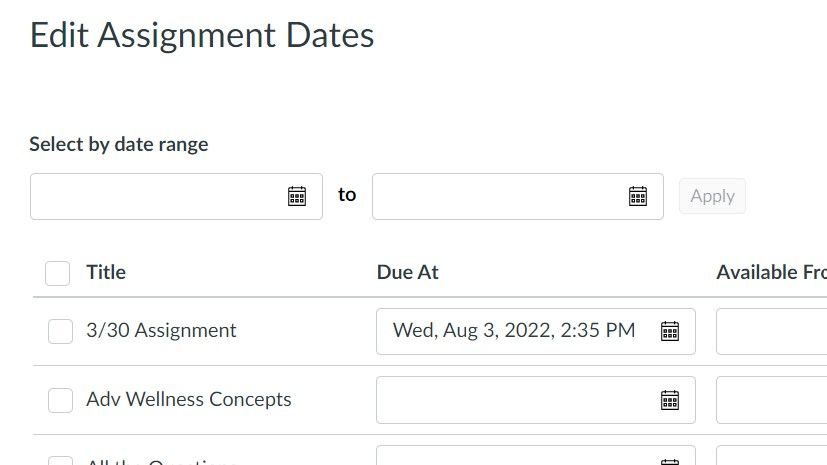
Is this where you are saying that you have to enter in the time for each assignment (of which it sounds you have many)? When I go to the other screen (explained in the Guide I had linked earlier) which allows me to edit due dates in bulk, it doesn't give an option to add in a time. Rather, I choose a date, and the default time of 11:59 PM is added to it...as shown here:

However, on this screen, I can manually change the time of 11:59 PM by just typing in the time that I want...for example, 2:35 PM. Canvas will accept this time once I save the page.
I then tried to copy the text from one due date field to another on the page. The strange thing was that even though I had a due date time of 2:35 PM, it switched it back to 11:59 PM on that same day. Weird! However, if I re-pasted the text over the top of the text that was in the due date field, the time of 2:35 PM "stuck" after I clicked away from that field. That does seem a bit buggy to me, to be honest...and probably worth of a ticket to the Canvas Help Desk team.
Now...the other option that you could use is a "Canvancement" (Canvas Enhancement) created by @James Jones. It works much like using this bulk due date page, but he does it via a script and using a Google Spreadsheet. Adjust All Assignment Dates on One Page - Instructure Community (canvaslms.com)
I hope I have covered much of what you have tried...so please let me know if any of this is helpful to you...thanks!




This discussion post is outdated and has been archived. Please use the Community question forums and official documentation for the most current and accurate information.