The Instructure Community will enter a read-only state on November 22, 2025 as we prepare to migrate to our new Community platform in early December. Read our blog post for more info about this change.
Hi - I think I know the answer to this, but I'm hoping I'm wrong.
Is there a way, within a course, in the "Files" area, to determine what folder a specific file is in. I know that I can go to files and search and it will find the file, but it doesn't tell where in the file structure it resides. I need to need to know what folder it's in so I can replace it.
We have multiple levels of nesting in our file structure, so clicking through every folder is very time consuming. We have a large project that will require replacing many files in all of our courses, and this will be extremely time consuming if we need to drill down into all of our sub-folders for the hundreds/thousands of files that we'll need to find.
Thanks for any ideas!
Kathleen Barringer
Excelsior College
Solved! Go to Solution.
Hello @kathleen1
Thank you for contacting the Canvas Community. We're sorry to hear you've been experiencing issues with finding the sub folders that your files are housed within. Thank you for providing a brief explanation as it pinpoints exactly the issue. Unfortunately, you're not wrong and there isn't a great way to back track to see which sub folders your files are contained in. You can search directly, or click on the main folder then scroll the sub folders beneath to peer into them. It is honestly not very user friendly and could be improved to help teachers with many files.
Feel free to check out our Ideas Conversation forum as we implement great ideas such as this that we find within the community.
https://community.canvaslms.com/t5/Idea-Conversations/idb-p/ideas
Hello @kathleen1
Thank you for contacting the Canvas Community. We're sorry to hear you've been experiencing issues with finding the sub folders that your files are housed within. Thank you for providing a brief explanation as it pinpoints exactly the issue. Unfortunately, you're not wrong and there isn't a great way to back track to see which sub folders your files are contained in. You can search directly, or click on the main folder then scroll the sub folders beneath to peer into them. It is honestly not very user friendly and could be improved to help teachers with many files.
Feel free to check out our Ideas Conversation forum as we implement great ideas such as this that we find within the community.
https://community.canvaslms.com/t5/Idea-Conversations/idb-p/ideas
Hi there, @kathleen1 ...
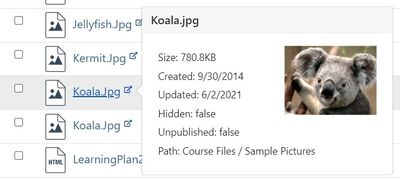
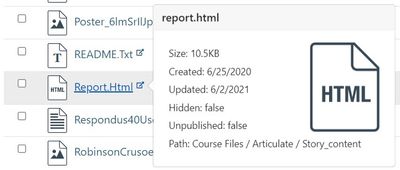
There is a solution, but it is a third-party product that would cost your school some money. It's called TidyUP from Cidi Labs. TidyUP allows you to clean up your course content and remove content, files, and folders that you aren't using in your course. Part of TidyUP allows you to see all the files in your course and what folders they are located in. Here's a couple examples from my own sandbox course:
As you can see from both of these examples, the path to the folder is listed on the bottom. "Course Files" is essentially the "root" folder within the course. So, the "Koala.jpg" file is located in the "Sample Pictures" folder. The "report.html" file is located in the "Story_content" folder...which is a folder inside the "Articulate" folder.
Here is more information on TidyUP on the Cidi Labs website: TidyUP for Canvas File and Page Cleanup - Cidi Labs
Hope this will help a bit.
Community helpTo interact with Panda Bot, our automated chatbot, you need to sign up or log in:
Sign inTo interact with Panda Bot, our automated chatbot, you need to sign up or log in:
Sign in
This discussion post is outdated and has been archived. Please use the Community question forums and official documentation for the most current and accurate information.