@JohnBlazier -
In copying what I have below, it may be the following comment at the very bottom that is the answer to your question(I hope):
"Any Course Navigation link that is hidden from students displays the Visibility icon [1]. A link may be hidden to students because the feature area has no content [2] or because the link is disabled [3]."
Number 2 is the answer - the visibility icon(eyeball) will show if there is no content for the navigation link - in this case no announcement posted yet
The other question you responded to had the answer in the response by @Chris_Hofer
The answer is down near the bottom of the page in the link. You have to move the announcements from the unviewed list to the displayed list of navigation links - and the most important part - click on save which is at the bottom of the navigation settings page. The navigation link needs to be enabled which is what the document referenced tells you how to do. you can also drag and drop the navigation links to whatever order you want to see them displayed.
here is the post again: https://community.canvaslms.com/t5/Instructor-Guide/How-do-I-manage-Course-Navigation-links/ta-p/102...
here is a screen shot of the relevant part (down near the bottom) - if this does not answer the question you want, then reply with more detail and screen shots to help us out.
Hide Navigation Links
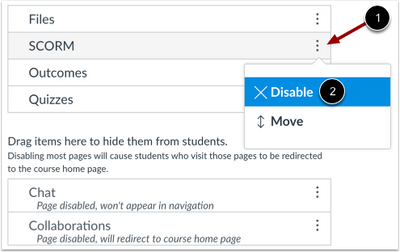
To hide a navigation link, click the link Options icon [1] and select the Disable option [2].
You can also drag and drop the link to the hidden section at the bottom of the page.
Enable Navigation Links
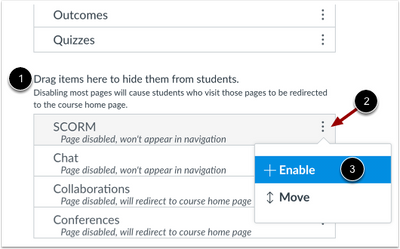
To enable a link in the hidden section [1], click the Options icon [2] and click the Enable button [3].
You can also drag and drop the link above the hidden section.
Save Navigation

Click the Save button.
View Course Navigation Links
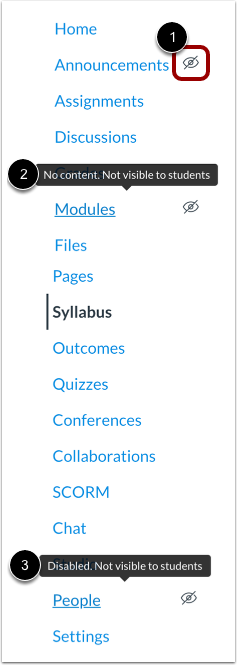
View the Course Navigation Menu. Navigation links will display in the same order that you have designated in Course Settings.
Any Course Navigation link that is hidden from students displays the Visibility icon [1]. A link may be hidden to students because the feature area has no content [2] or because the link is disabled [3].
Note: If you have disabled a Course Navigation link to an external tool, that link will not display in Course Navigation and is hidden to all course users, including instructors.






This discussion post is outdated and has been archived. Please use the Community question forums and official documentation for the most current and accurate information.