The Instructure Community will enter a read-only state on November 22, 2025 as we prepare to migrate to our new Community platform in early December. Read our blog post for more info about this change.
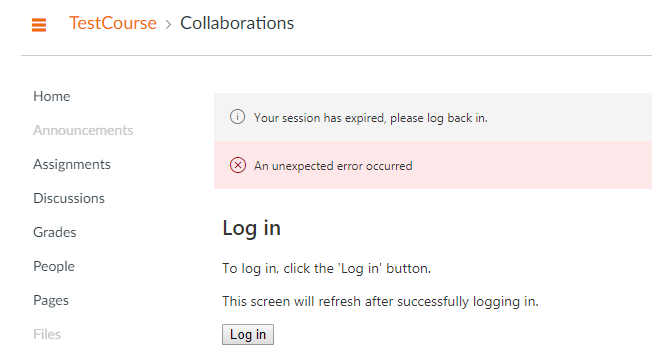
Encounter unexpected error when starting a collaboration (At course level > Select Collaborations > click ‘Add Collaboration’ > click ‘Log In’ > “An unexpected Error occurred”).
This error continue even after clicking the "Log in" button. Wondering this login is a login to Canvas or the LTI (Office365/Google).
Solved! Go to Solution.
Thanks Robbie.
Unfortunately, couldn't find the solution and root cause even a support ticket has submitted. We sort of give up the idea of using Collaboration as it seems unstable to us.
I found that completing the steps below resolved the 'unexpected error' when trying to create an Office 365 collaboration:
If this works for anyone let me know. Also avoid any special characters in the collaboration title or spaces at the beginning of the title as I found these also caused the 'unexpected error' to occur when creating a collaboration.
regards
Joe
@pctay ,
First, I want to apologize for your question sitting in the Community for so long without a reply. It looks like you may have stumped the Community.
Second, were you able to find an answer to your question? I am going to go ahead and mark this question as answered because there hasn't been any more activity in a while so I assume that you have the information that you need. If you still have a question about this or if you have information that you would like to share with the community, by all means, please do come back and leave a comment. Also, if this question has been answered by one of the previous replies, please feel free to mark that answer as correct.
I would also recommend contacting Support from the Help > Report a Problem area of Canvas (although at this point it may be too late).
Robbie
Thanks Robbie.
Unfortunately, couldn't find the solution and root cause even a support ticket has submitted. We sort of give up the idea of using Collaboration as it seems unstable to us.
Our teachers are having the same issue with Office 365. We have a ticket in the queue.
We have reported the same error and have a support ticket to which we receive response like "hickups" and "updating LTI tool". Which are no solution to the issue, so ticket still open.
Regards
Jytte
Hi Jytte,
I have also experienced the 'an unexpected error occurred' - it seems to be intermittent - sometimes it works and sometimes it doesn't. Have you had any update on your support ticket?
many thanks
Joe
It’s still “on hold”
Hi Joseph,
yes, indeed we did. Finally, Canvas support understood the problem was NOT related to Azure....Also our CSM had to assist with a key.
The let us know we had to enable the LTI tool Microsoft Office 365 to be used for your Collaborations inside our Canvas.
Here a quote fro their response, which fixed the issue for us (some menu option are displayed in Danish):
"It an external LTI tool that does need to be enabled inside your Account and I would be glad to detail that process.
To do so please go to the Account Settings. There you will see the tab labeled 'Apps'. Click on that tab to access your Account applications that you have enabled and we can search for Apps that have not yet been enabled as well. https://www.screencast.com/t/8VrFpbIO53U To install Office 365 correctly we would need to update the link inside your App Configuration. Click on where it says "Vis-app Konfigurationer". This will bring you to your Account level app configurations. To reconfigure that app click the gear icon next to the MIcrosoft Office 365 app. https://www.screencast.com/t/U6GtGwcg Click Rediger. This will bring you into the app configuration for that tool, and we would need to make sure that URL is updated. For Canvas schools serviced in other regions worldwide please contact your Canvas Customer Success Manager (CSM) for a region specific key/secret and configuration XML url. Once that has been updated, you would need to install that inside your app configuration under Eksterne app'er. If you are in need of that specific URL that you use to update that app we can include your CSM to provide that for your. Please let us know how this helps or if I can assist further.
Thank you,
Chase S L1 Canvas Support support@instructure.com"
Regards
Jytte
Thanks Jytte. I will look into the configuration details. I also found that by logging out and back into Office 365 worked (I've outlined the steps below in a response to this post/original question)
Best regards
Joe
Hi,
We had this issue aswell, but this was fixed by enabling the OFFICE 365 at course level.
Best regards
Arve
I found that completing the steps below resolved the 'unexpected error' when trying to create an Office 365 collaboration:
If this works for anyone let me know. Also avoid any special characters in the collaboration title or spaces at the beginning of the title as I found these also caused the 'unexpected error' to occur when creating a collaboration.
regards
Joe
Hi @j_avneri
I've noticed that the 'unexpected error' only occurs with first time Canvas collaboration users.
Today we experimented with a few things but you are right with just accessing Office 365 from a course menu. Then hey presto collaborations work.
I assume it's the same for people who receive a collaboration - they will need to 'activate' it similarly. Bit of a shame but I'm glad I know now. I love Collaborations - when they work. https://community.canvaslms.com/groups/k12/blog/2017/11/10/collaborations-changed-my-world
Hi @Bobby2 ,
That's great it worked for you too. I think you're right in that the issue occurs mostly for first time collaboration users and perhaps new users that have not yet signed in / activated office 365.
We are experiencing another issue where when you go in to edit a saved collaboration you can't view the current collaborators and the 'unexpected error' is at the top. Additionally when you add a new collaborator and save, all the previous collaborators are removed. I know that some other institutions are also experiencing this and not sure if you are too but you can read more about it in the comments of this discussion: https://community.canvaslms.com/thread/15486-collaboration-issues . We currently have a support ticket with instructure for this.
I will also check out your blog!
Kind regards
Joe
Thanks @j_avneri that's an issue I haven't encountered yet. Will keep an eye out for it.
I don't see the solution that I figured out to this problem. I had to enable Office365.
Starting at the Home page for the course, go to Settings, click on the Navigation tab. Scroll down to the hidden/disabled items. For me, Office365 was disabled. Click on the breadcrumbs and select Enable. Scroll to the bottom and click Save. Now Office365 appears in my navigation, click on it and it may ask you to log in.
Once I did this, I was able to create Collaborations using Office365.
Community helpTo interact with Panda Bot, our automated chatbot, you need to sign up or log in:
Sign inTo interact with Panda Bot, our automated chatbot, you need to sign up or log in:
Sign in
This discussion post is outdated and has been archived. Please use the Community question forums and official documentation for the most current and accurate information.