@JustinDavidson
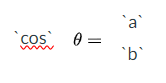
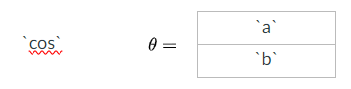
There is no built-in control over individual aspects of the border. That is controlled by Cascading Style Sheets (CSS). You need to use the HTML editor in the question to control it.
I would turn off the border using Canvas and then click on the </> at the bottom of the editor to enter HTML view.
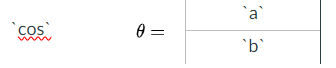
Find the td element for either the top cell or the bottom cell. On that cell add styling for border-bottom (top cell) or border-top (bottom cell). When done, click the </> to toggle back to the visual mode.
For example, it might look something like this (I've stripped out everything but the border).
<table>
    <tbody>
        <tr>
            <td style="border-bottom: solid black 1px;">`a`</td>
        </tr>
        <tr>
            <td>`b`</td>
        </tr>
    </tbody>
</table>
There is a slight accessibility issue as the border won't be visible to screen readers. Unfortunately, there's not a perfect way to reproduce the written form of mathematics in Canvas.
One alternative, which doesn't look as pretty, would be to use a / or ÷ between two horizontal input boxes. At least those would be read to someone using a screen reader.